
Watch Video Tutorial Below
Step 1: Visit Our Website
Go to www.eego.co from your mobile phone or desktop browser to land our homepage.
Step 2: Login to Your Account
Upon successful sign in or signup, you are redirected to your unique store dashboard. From this page, you can carry our important operations that connects to your storefront. Click on the Products tab to start creating products
Step 3: Add a Product
Click on the Add Product button at the top right corner to add a product to your catalogue.
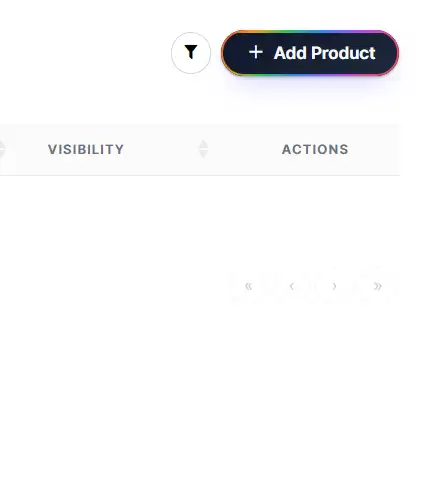
Step 4: Choose Product Type & Name
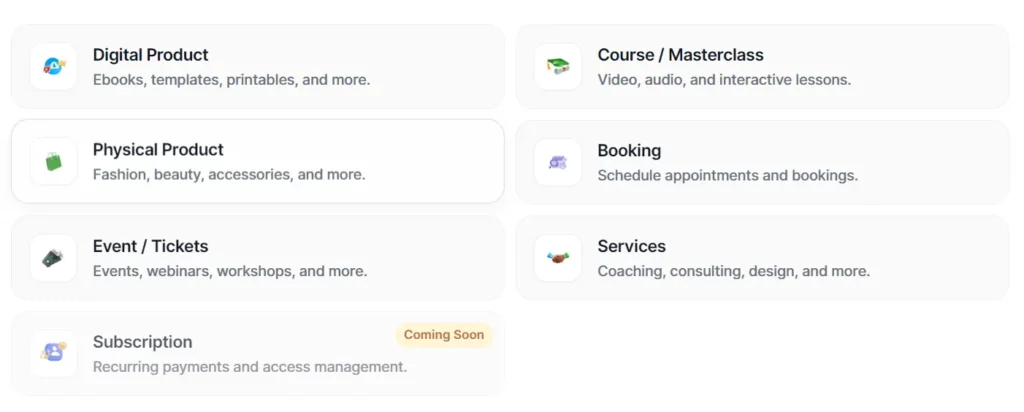
Select what type of product you would like to sell, and choose a catchy product name to sell.
Step 5: Customize Product Link
Choose a custom link for your product to allow potential customers find your listing easily.
Step 6: Add Product Information
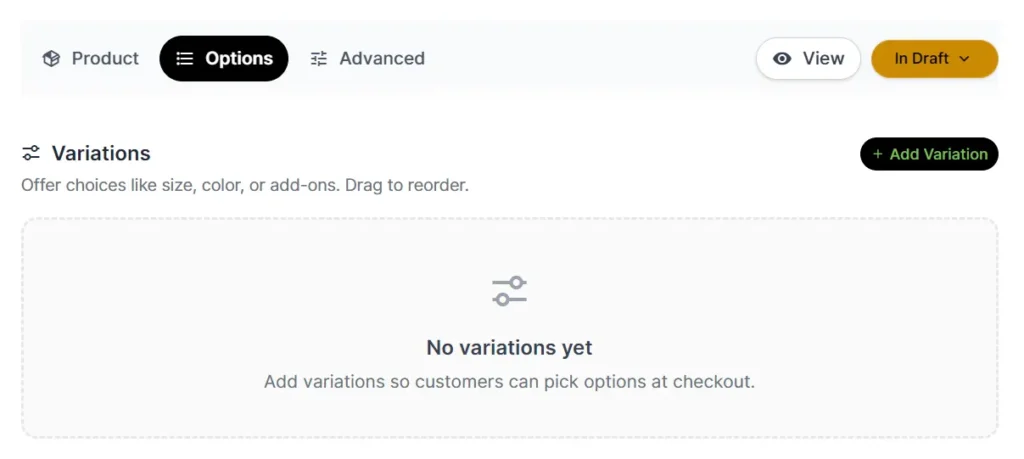
Add all the vital product information for your customers. You can preferably add product variations if you offer exclusives on your products. Ensure to fill in information like:
- Product Image
- Pricing
- Product link
- Download Settings
Step 7: Make Advanced Settings
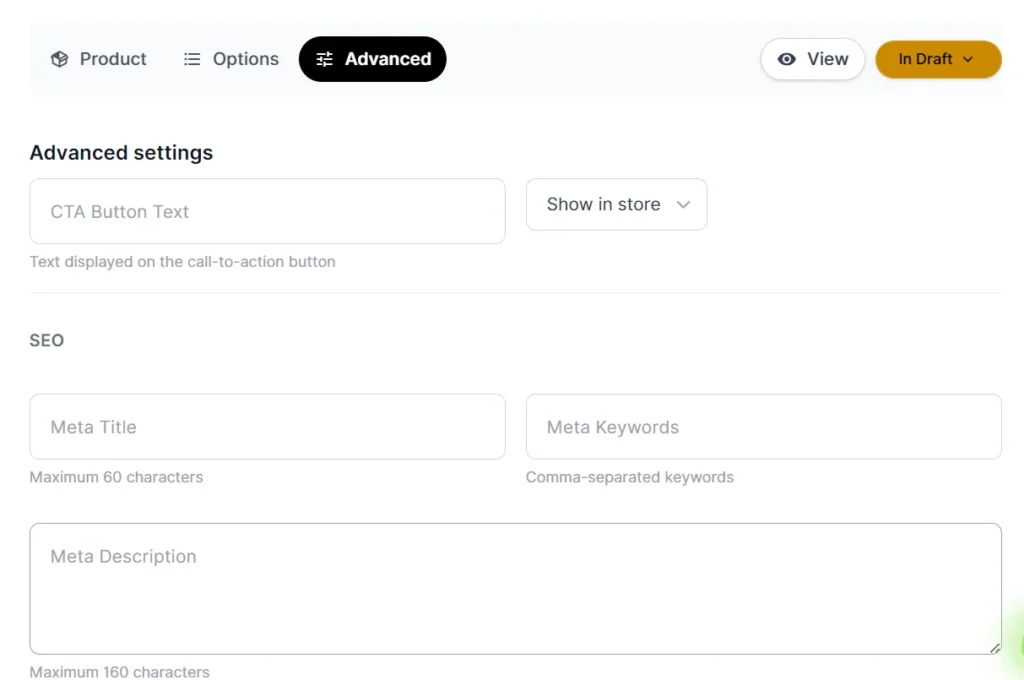
For the best experience, eego allows creators and sellers to add SEO information like CTA button text, meta title, and meta description to their products for easy accessibility by search engines.
Key Takaway
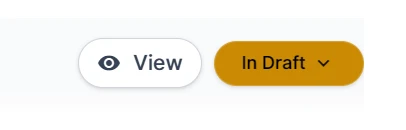
Your store products are saved in “Draft” by default. You can manually toggle it as “published”, making it visible on your storefront.