Your “My Store” button lets you view your live storefront exactly the way customers see it.
This is where you copy your store link, preview products, and test the buying experience.
Where to Find “My Store”
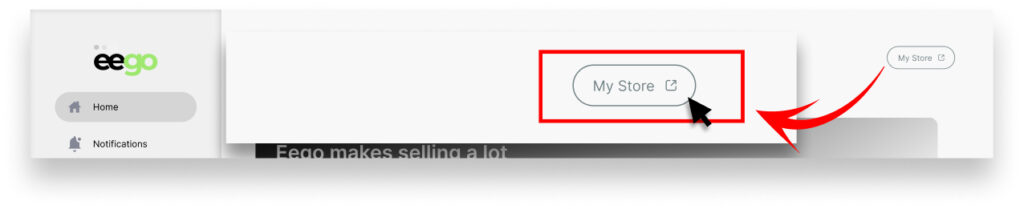
You can access your store in seconds:
- Log into your Eego Dashboard.
- Go to the Home page.
- Look at the top right corner of the dashboard.
- Click the “My Store” button.
You’ll be redirected to your public storefront.
What Happens When You Click “My Store”?
When you click it:
- You see your live store page.
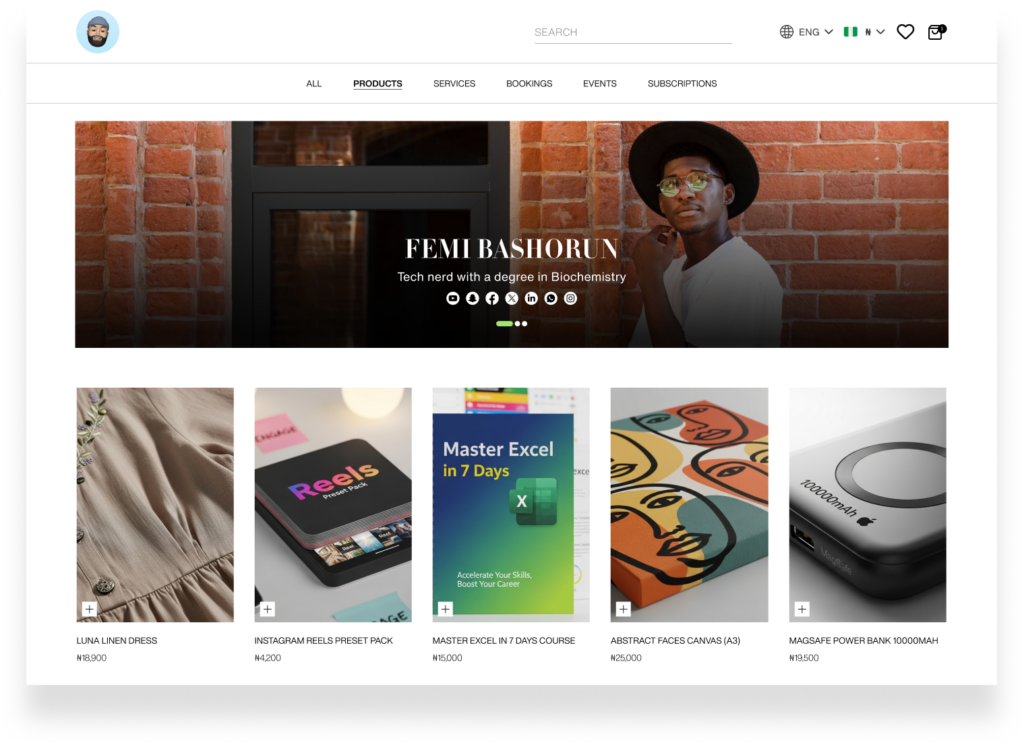
- All published products appear.
- Draft products will NOT be visible.
- You can copy the URL from your browser.
That URL is your official store link.
How to Share Your Store Link
Once your store opens:
- Copy the URL from the address bar.
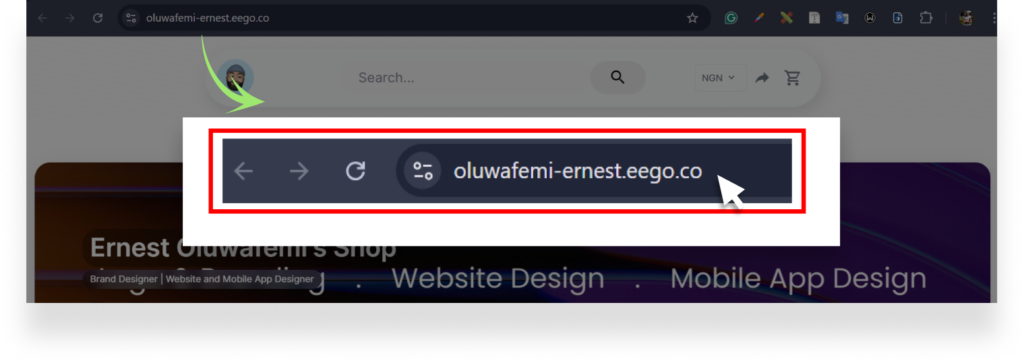
- Paste it anywhere:
- WhatsApp
- Instagram bio
- Twitter
- Facebook
- Email
- Telegram
That link is what customers use to buy from you.
If Your Store Is Empty
If you click “My Store” and nothing appears:
- Make sure you have at least one product
- Ensure the product status is set to Public, not Draft
- Confirm pricing is set correctly
To fix it:
- Go to Products
- Click Edit
- Change status to Public
- Click Update Product
How to Test Your Store
Before sharing:
- Open your store in an incognito/private browser.
- Check product display.
- Test checkout flow.
- Confirm download works (for digital products).
